

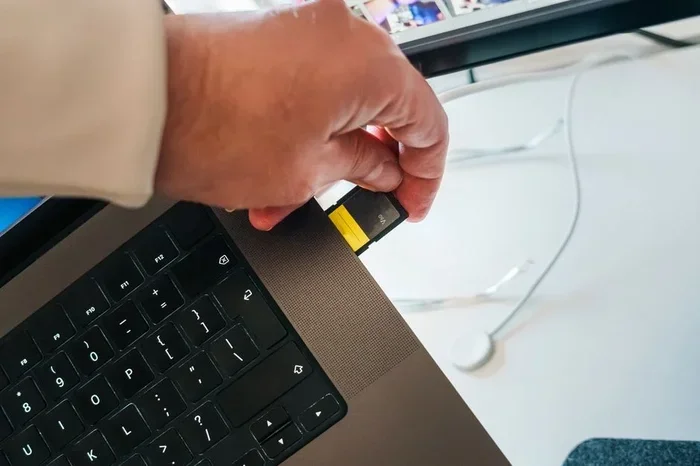
Moving your micro SD card to a different phone is simple and saves you time and money. Whether you are switching phones or just need extra storage, this guide walks you through every step. You will learn how to eject the card, insert it into a new device, transfer your files, and avoid common mistakes that can damage your data.
Switching phones can feel stressful, especially when you have important files stored on your micro SD card. The good news is that moving your memory card to a new device is one of the easiest tech tasks you can do. Whether you are upgrading to a new Android phone or just need more room for photos and videos, this guide has you covered.
In this article, we will walk you through the entire process step by step. You will learn how to remove your card safely, insert it into a different phone, transfer your data, and troubleshoot common issues. By the end, you will feel confident handling your expandable storage like a pro.
Key Takeaways
- Easy Process: Putting a micro SD card in a different phone takes just a few minutes and requires no special tools.
- Adapter Option: You can use an SD card adapter if your new phone only has a full-size SD slot.
- Data Safety: Always back up your files before moving the card to prevent data loss.
- Formatting Matters: Your new phone may ask you to format the card before it works properly.
- File Transfer: Use a USB card reader or Bluetooth to move files between the old and new phone.
- Compatibility Check: Make sure your new phone supports micro SD cards before you make the switch.
- Storage Boost: A micro SD card gives your phone expandable storage for photos, apps, and media.
📑 Table of Contents
Why Move Your Micro SD Card to a Different Phone
There are many reasons people switch their memory cards between devices. Some want to keep their old photos and contacts safe. Others simply need more storage space on a new phone. Whatever your reason, understanding the process helps you avoid data loss and wasted time.
A micro SD card is a tiny storage device that plugs directly into your phone. It lets you store extra photos, videos, music, and documents without filling up your phone’s built-in memory. Many Android phones support this feature, making it a popular choice for users who want expandable storage.
Benefits of Using a Memory Card
- Extra Space: Add hundreds of gigabytes of storage without buying a new phone.
- Easy File Sharing: Move files between devices quickly by simply swapping the card.
- Cost Effective: Memory cards are affordable and reusable across multiple devices.
- Backup Solution: Keep a copy of your important files safe outside your phone.
- Portable Storage: Carry your media, documents, and apps with you on a tiny card.
How to Remove Your Micro SD Card Safely
Before you put your card into a different phone, you need to remove it from the current device the right way. Rushing this step can damage the card or corrupt your files.
Step-by-Step Removal Process
- Power off your phone. This protects both the card and your data from electrical issues.
- Locate the SIM card tray. Most phones have a small tray on the side that holds both your SIM card and micro SD card.
- Use the ejector tool. Insert the tiny pin into the hole next to the tray. Push gently until the tray pops out.
- Slide the card out. The micro SD card sits next to the SIM card in the tray. Pull it out carefully.
- Handle with care. Avoid touching the gold contacts on the card. Hold it by the edges only.
Quick Tip: If you do not have the ejector tool that came with your phone, a small paperclip works perfectly fine. Just be gentle so you do not bend the pin.
How to Insert the Card into a Different Phone
Now that you have your micro SD card ready, it is time to place it in your new phone. The process is almost the same as removing it, just in reverse.
Step-by-Step Insertion Process
- Power off your new phone. This prevents any potential data conflicts during insertion.
- Find the SIM card tray. It is usually on the side of the phone.
- Place the card in the tray. The micro SD card goes into the slot marked for it. Make sure the gold contacts face down.
- Slide the tray back in. Push it gently until it clicks into place.
- Power on your phone. The device should recognize the card within a few seconds.
If your new phone does not have a micro SD card slot, do not worry. You can use an SD card adapter to connect the card through a USB port or card reader. This is a great workaround that lets you access your files on almost any device.
Transferring Your Files to the New Phone
Once the card is in your new phone, you need to move your files over. This step ensures all your photos, videos, and documents are available on the new device.
Method 1: Use the Built-In File Manager
Most Android phones come with a file manager app. Open it and look for your SD card under “Storage” or “Device Storage.” From there, you can copy and paste files to your phone’s internal storage or keep them on the card.
Method 2: Use a USB Card Reader
Plug your micro SD card into a USB adapter and connect it to your computer. This method works great when you want to transfer large files quickly. Simply drag and drop your files from the card to your phone using a USB cable.
Method 3: Use Bluetooth or Cloud Storage
If you prefer wireless options, Bluetooth and cloud services like Google Drive work well for smaller files. Just pair your devices and send the files over. Cloud storage is ideal for photos and documents you access often.
Common Mistakes to Avoid
Even though this process is straightforward, people still make mistakes that can cause problems. Here are a few things to watch out for.
- Removing the card while the phone is on. This can corrupt your files and damage the card.
- Forcing the card into the tray. If it does not fit, check the orientation. The card only goes in one way.
- Skipping the format step. Your new phone may ask you to format the card. This is normal and helps the device read the card properly.
- Using a damaged card. If your card is scratched or worn out, replace it before transferring important files.
- Ignoring compatibility. Not all phones support micro SD cards. Check your phone’s specs before buying a new card.
Expert Insight: Always format your micro SD card in the new phone rather than the old one. This ensures the file system matches your new device’s requirements and helps everything run smoothly.
Troubleshooting Common Issues
Sometimes things do not go as planned. If your new phone does not recognize the card, try these simple fixes.
- Clean the card contacts. Use a soft, dry cloth to wipe the gold contacts gently.
- Try a different slot. If your phone has both a SIM and SD tray, make sure the card is in the right one.
- Restart your phone. A simple reboot often fixes recognition issues.
- Check for damage. Inspect the card for cracks or bends that might prevent proper contact.
Quick Tip: Keep a backup of your most important files in the cloud. This way, even if something goes wrong with your micro SD card, your data stays safe.
Final Thoughts
Putting your micro SD card in a different phone is a quick and easy process that anyone can do. You just need to remove the card carefully, insert it into the new device, transfer your files, and you are all set. Remember to back up your data, handle the card gently, and format it in the new phone for the best results.
With a little patience and the right steps, your files will be right where you left them. Enjoy your expanded storage and the freedom of carrying your data with you wherever you go.
Frequently Asked Questions
Can I put my micro SD card in any phone?
Not all phones support micro SD cards. Most Android phones do, but many newer iPhones do not have a card slot. Check your phone’s specifications before you try to insert a memory card.
Do I need to format my micro SD card when switching phones?
Your new phone may prompt you to format the card. This is normal and recommended. Formatting ensures the card works properly with the new device’s file system.
Can I use a micro SD card and SIM card in the same tray?
Yes, many phones have a combined tray that holds both your SIM card and micro SD card. They sit side by side in the same slot.
How do I transfer files from the old phone to the new one using the card?
Simply insert the card into the old phone, move your files onto it using the file manager, then insert the card into the new phone and copy the files to your desired location.
Is it safe to remove a micro SD card while the phone is on?
No, it is not safe. Always power off your phone or use the safe eject option before removing the card. This prevents data corruption and potential damage to the card.
What should I do if my new phone does not recognize the micro SD card?
Try cleaning the card contacts with a soft cloth, restarting your phone, or reinserting the card carefully. If the issue persists, the card may be damaged or incompatible with your new device.
=== CONCLUSION ===
Moving your micro SD card to a different phone is one of the simplest and most useful skills you can learn. It gives you flexibility, saves money, and keeps your important files accessible no matter which phone you use. Follow the steps in this guide, avoid the common mistakes, and you will have a smooth experience every time. Your expandable storage is a powerful tool, and now you know exactly how to make the most of it.