

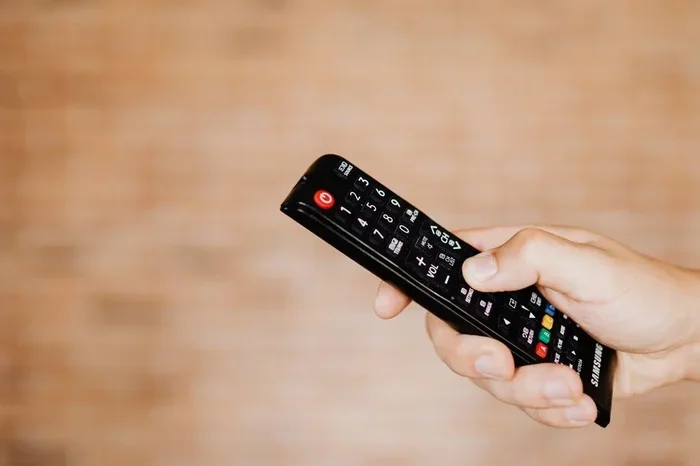
You can easily put your Sylvania TV on input without a remote by using the buttons on the TV itself, the Sylvania remote app, or a universal remote. Whether your remote is lost, broken, or the batteries died, there are several quick methods to switch your input source. This guide walks you through every option in simple steps.
So your Sylvania TV remote just stopped working, or maybe you misplaced it entirely. You want to watch your favorite show, but you cannot figure out how to switch the input. Sound familiar? You are not alone. Many Sylvania TV owners face this exact problem at some point.
The good news is that you do not need a remote to change the input on your Sylvania TV. There are several simple methods you can try right now. Putting your Sylvania TV on input without a remote is easier than you think. In this guide, we will walk you through every option step by step. Let us get started.
Key Takeaways
- Use the TV buttons: Most Sylvania TVs have input/source buttons on the side or back panel.
- Try the Sylvania remote app: Download the free app on your smartphone to control your TV.
- Get a universal remote: A universal remote works with Sylvania TVs and replaces a lost one easily.
- Use a smart device: Smart plugs, voice assistants, and streaming devices can help switch inputs.
- Check your TV model: Button locations vary by model, so find yours for the best results.
- Reset as a last resort: A factory reset can fix remote-related issues on your Sylvania TV.
📑 Table of Contents
Why Would You Need to Change Input Without a Remote?
There are many reasons your remote might not be working. Maybe the batteries died. Perhaps the remote got lost under the couch cushions. Or maybe the remote simply broke after a fall. Whatever the reason, knowing how to switch inputs manually saves you time and frustration.
Here are some common situations where you might need to change your Sylvania TV input without a remote:
- Your remote batteries died and you do not have replacements right now.
- You just moved and cannot find the remote.
- The remote got damaged by water or a drop.
- You want to connect a new device like a gaming console or DVD player.
- The remote stopped working after a software update.
No matter the reason, the solutions below will help you get back to watching your favorite content quickly.
Method 1: Use the Buttons on Your Sylvania TV
Locate the Control Buttons on Your TV
Most Sylvania TVs have built-in buttons on the back, side, or bottom edge of the TV. These buttons let you control the TV even without a remote. The location depends on your model, so look carefully around the TV.
Here is how to find and use them:
- Turn around your TV and look at the back or side panel.
- Find the button panel — it usually has small raised buttons with symbols.
- Look for the “Source” or “Input” button. It may look like a rectangle with an arrow pointing into it.
- Press the button to cycle through available inputs like HDMI 1, HDMI 2, AV, or Component.
- Stop when you see the right input on your screen.
Some Sylvania models also have a menu button that lets you navigate to input settings using the arrow buttons. This is especially helpful if your TV has many input options.
Quick Tip for Finding the Right Button
If you are not sure which button is the input button, try pressing each button slowly and watch the screen. The input or source button will usually bring up a menu showing all available inputs. This makes it easy to identify.
Method 2: Use the Sylvania TV Remote App on Your Phone
Download and Set Up the App
If you have a smartphone, you can turn it into a remote control for your Sylvania TV. The Sylvania TV remote app is free and works with most Sylvania models. Here is how to get started:
- Open your phone’s app store (Google Play or Apple App Store).
- Search for “Sylvania TV remote” or a universal remote app.
- Download and install the app on your phone.
- Make sure your phone and TV are on the same Wi-Fi network.
- Follow the setup instructions in the app to pair with your TV.
- Use the app to select your input source just like a regular remote.
This method works great if your remote is lost and you need a quick fix. The app also gives you access to all the remote buttons, so you can control volume, power, and input switching from your phone.
Method 3: Buy a Universal Remote
A universal remote is a simple and affordable solution. These remotes work with many TV brands, including Sylvania. You can buy one at most electronics stores or online for under $15.
To set up a universal remote:
- Buy a universal remote that lists Sylvania as a compatible brand.
- Insert batteries and follow the setup guide included in the box.
- Enter the Sylvania code for your specific model (codes are listed in the remote’s manual).
- Test the remote by pressing the input or source button.
Once programmed, the universal remote works just like the original. This is a great long-term fix if you tend to lose remotes often.
Method 4: Use a Streaming Device or Smart Home Assistant
If you have a streaming device like a Roku, Amazon Fire Stick, or Chromecast plugged into your Sylvania TV, you can use that device to switch inputs. Most streaming devices have their own remote or app that lets you navigate between inputs.
You can also use a voice assistant like Amazon Alexa or Google Assistant if your TV is smart-enabled. Simply say, “Alexa, switch to HDMI 1” or “Hey Google, change the input.” This works best when your TV is connected to the same Wi-Fi network as your smart speaker.
Common Mistakes to Avoid
When trying to switch inputs on your Sylvania TV without a remote, keep these mistakes in mind:
- Do not press and hold buttons too long. A quick press is usually enough.
- Make sure your TV is powered on before trying to change inputs.
- Check the cable connections. A loose HDMI cable can make it seem like the input is not working.
- Do not ignore the TV menu. The on-screen menu often has an input or source option.
- Avoid using the wrong remote app. Make sure the app you download is compatible with Sylvania TVs.
Final Thoughts
Putting your Sylvania TV on input without a remote is simple and doable with any of the methods above. Whether you use the buttons on the TV, a smartphone app, a universal remote, or a smart assistant, you have options. The buttons on the TV are the fastest and most reliable method, while the remote app is the most convenient for everyday use.
Keep this guide handy for the next time your remote stops working. With these tips, you will never be stuck watching the wrong input again. Try the method that works best for you and enjoy your Sylvania TV with ease.
Frequently Asked Questions
Can I change the input on my Sylvania TV without any remote at all?
Yes, you can. Most Sylvania TVs have physical buttons on the back or side panel. Look for the “Source” or “Input” button and press it to cycle through available inputs. This is the easiest method that requires nothing but your TV.
Does the Sylvania TV remote app work with all models?
The Sylvania remote app works with most Sylvania models, especially newer ones that support Wi-Fi or smart features. Check the app description or the Sylvania website for a list of compatible models before downloading.
How do I find the Sylvania TV button on the device?
Look at the back, side, or bottom edge of your TV for a small panel with buttons. The input or source button is usually labeled with an icon that looks like a rectangle with an arrow pointing into it. Refer to your TV manual for the exact location if you cannot find it.
What should I do if none of the buttons on my Sylvania TV work?
First, make sure your TV is plugged in and powered on. Try unplugging the TV for 30 seconds and plugging it back in. If the buttons still do not work, the control board may need replacement. Contact Sylvania customer support for further help.
Is a universal remote expensive for a Sylvania TV?
No, universal remotes are very affordable. You can find one for $10 to $20 at most stores. They are a great long-term solution if you frequently lose or damage your remote control.
Can I use voice commands to switch inputs on a Sylvania TV?
Yes, if your Sylvania TV is smart-enabled and connected to a voice assistant like Alexa or Google Assistant, you can use voice commands to switch inputs. Just make sure your TV and smart speaker are on the same Wi-Fi network.