

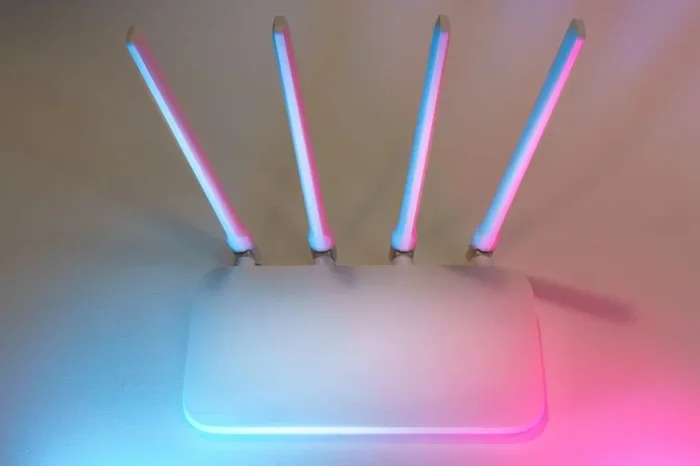
Accessing your BT Homehub settings is simple once you know the right steps. You can log into your BT Homehub Settings page using your router’s IP address and admin credentials. This guide walks you through every step, from logging in to changing your wireless password and troubleshooting common issues.
Ever needed to change your Wi-Fi password or check your broadband speed but did not know where to start? Accessing your BT Homehub settings is easier than you might think. Whether you have a BT Homehub 4 or the newer BT Homehub 5, the process follows a simple pattern. In this guide, we will walk you through every step so you can manage your router with confidence.
Your BT Homehub is the brain of your home broadband setup. It controls everything from your wireless connection to your security settings. Knowing how to open the BT Homehub admin panel gives you full control. You can fix slow speeds, change your network name, and even set up parental controls. Let us dive in and show you exactly how to do it.
Key Takeaways
- Easy Login: You can access your BT Homehub settings by typing 192.168.1.254 into your browser.
- Default Credentials: The default username and password are printed on a sticker on your BT Homehub device.
- Key Settings Available: You can change your Wi-Fi name, password, parental controls, and more from the admin panel.
- Troubleshooting Tips: If you cannot log in, try resetting your hub or checking your connection method.
- Security Matters: Always change your default password after your first login to keep your network safe.
- Multiple Hub Models: The process is similar across BT Homehub 3, 4, and 5 models.
📑 Table of Contents
What Is the BT Homehub and Why Access Its Settings?
The BT Homehub is BT’s branded router. It connects all your devices to the internet through Wi-Fi or Ethernet cables. Think of it as the gateway between your home and the wider web. Without it, none of your phones, laptops, or smart TVs would get online.
So why would you need to access its settings? There are many reasons:
- Change your Wi-Fi password if you suspect someone else is using your network.
- Update your network name to make it easier to identify.
- Set up parental controls to keep your children safe online.
- Check your broadband speed and run diagnostics.
- Update firmware to keep your router running smoothly.
- Troubleshoot connection problems without calling support.
Once you know how to reach the BT Homehub configuration page, you can handle all of these tasks yourself. It saves time and gives you independence.
How to Log Into Your BT Homehub Admin Panel
Logging into your BT Homehub is a straightforward process. Follow these simple steps to get started.
Step 1: Connect to Your BT Homehub
First, make sure your device is connected to the BT Homehub. You can do this in two ways:
- Wi-Fi: Use the default network name and password found on the sticker at the back of your hub.
- Ethernet cable: Plug a cable directly from your computer into one of the hub’s numbered ports.
An Ethernet connection is more stable and recommended if you are changing important settings.
Step 2: Open Your Web Browser
Open any web browser on your connected device. This can be Chrome, Safari, Firefox, or Edge. Type the following address into the URL bar and press Enter:
http://192.168.1.254
This is the default IP address for most BT Homehub models. It will take you straight to the login page for your BT Homehub Settings.
Step 3: Enter Your Login Details
You will see a login screen asking for a username and password. Look at the sticker on the back or bottom of your BT Homehub. You will find the default credentials there. Typically, the username is admin and the password is printed on the same label.
Type these in carefully and click the login button. If you have already changed the password and forgotten it, do not worry. We will cover how to reset this in a later section.
Step 4: Explore the Dashboard
Once logged in, you will see the BT Homehub dashboard. This is your control centre. From here, you can navigate to different sections like wireless settings, user management, and broadband status. Each section lets you adjust specific parts of your network.
Key Settings You Can Change on Your BT Homehub
Now that you are inside, let us look at the most useful settings you can adjust.
Wireless Network Name and Password
Go to the Wireless or Wi-Fi section in the dashboard. Here you can change your network name (SSID) and set a new password. Choose a strong password with a mix of letters, numbers, and symbols. This keeps your BT home hub setup secure from unauthorised users.
Parental Controls
The BT Homehub offers built-in parental controls. You can block specific websites, set time limits for internet use, and filter content by category. This is found under the Parental Controls or Safe Browsing section. It is a great tool for families with young children.
Firmware Updates
Your router’s firmware is its operating system. BT releases updates to fix bugs and improve performance. Check the System Settings or Maintenance section for any available updates. Keeping your firmware current helps your hub run at its best.
Connected Devices
Want to see what devices are using your internet? The Device List or Connected Devices section shows every device currently linked to your hub. If you see something you do not recognise, you can block it from here.
Troubleshooting Common Login Issues
Sometimes things do not go as planned. Here are the most common problems and how to fix them.
Cannot Reach 192.168.1.254
If the page will not load, first check that your device is connected to the BT Homehub. Try using a different browser or clearing your cache. You can also try typing the IP address directly instead of using a bookmark.
Forgot Your Password
If you changed your admin password and cannot remember it, you will need to factory reset your hub. Press and hold the small reset button on the back of the device for about 10 seconds. This restores all settings to their defaults, including the original password from the sticker.
Login Page Will Not Load at All
Try connecting your device directly to the hub using an Ethernet cable. Remove any VPN software temporarily, as this can interfere with accessing the admin page. Also, make sure no other router is sitting between your device and the BT Homehub.
How to Reset Your BT Homehub Settings
A factory reset wipes all your custom settings and returns the hub to its original state. This is useful when you are selling your hub or if nothing else is working.
To reset your BT Homehub Settings, locate the small reset pinhole on the back of the device. Use a paperclip or SIM ejector tool to press and hold the button for 10 seconds. The hub will restart and all lights will flash. Once it powers back on, use the default credentials from the sticker to log in again.
Warning: A factory reset deletes your Wi-Fi name, password, and any custom configurations. Make sure you have your broadband username and password handy before you proceed.
Tips for Securing Your BT Homehub
Keeping your router secure is just as important as accessing its settings. Here are some quick tips:
- Change the default admin password immediately after your first login.
- Use WPA3 or WPA2 encryption for your Wi-Fi network.
- Update your firmware regularly to patch security vulnerabilities.
- Disable WPS (Wi-Fi Protected Setup) if you do not use it.
- Change your default network name so it does not reveal the router model.
Taking these small steps goes a long way in protecting your home network. A secure hub means safer browsing for everyone in your household.
Final Thoughts
Accessing your BT Homehub Settings opens up a world of possibilities. You no longer need to wait on hold with customer support for simple changes. From updating your Wi-Fi password to running speed tests and managing connected devices, the admin panel puts you in charge. The process is quick, free, and gives you real control over your broadband experience.
Keep this guide bookmarked for future reference. Whenever you need to adjust something on your BT Homehub, you will know exactly what to do. Take a few minutes today to explore your settings and make your network work better for you.
Frequently Asked Questions
What is the default IP address for BT Homehub?
The default IP address for most BT Homehub models is 192.168.1.254. Simply type this into your web browser’s address bar to reach the login page for your BT Homehub Settings.
Where can I find the default username and password for my BT Homehub?
The default login credentials are printed on a sticker located on the back or bottom of your BT Homehub device. Look for a label that lists the admin username and password.
Can I access BT Homehub settings from a mobile phone?
Yes, you can access your BT Homehub Settings from any device connected to the hub, including smartphones and tablets. Just open your browser and type in 192.168.1.254.
What should I do if I forgot my custom admin password?
If you forgot your custom password, you will need to factory reset your BT Homehub. Press and hold the reset button on the back for 10 seconds, then log in using the default credentials from the sticker.
Is it safe to change settings on my BT Homehub?
Yes, it is safe as long as you are careful. Stick to settings you understand and avoid changing anything in the advanced system section unless you are sure of what you are doing. Always write down changes before making them.
How often should I update my BT Homehub firmware?
You should check for firmware updates every few months. BT often releases updates to improve performance and fix security issues. The update option is usually found in the System Settings or Maintenance section of your BT Homehub Settings dashboard.
=== CONCLUSION ===
Accessing your BT Homehub settings is a simple but powerful skill. It lets you take control of your home network without relying on anyone else. Follow the steps in this guide, and you will be managing your router like a pro in no time. Start with the basics, explore the different sections, and always keep your network secure. Your BT Homehub is there to serve you, and now you know exactly how to make it work the way you want.