

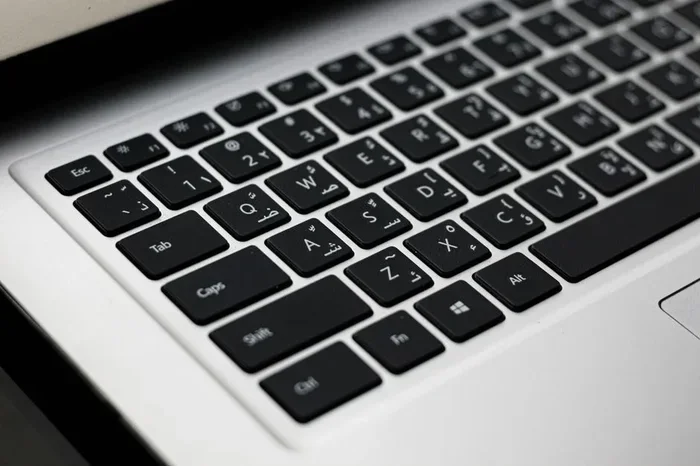
Changing your keyboard to type Arabic is simple and fast on any device. Whether you use Windows, Mac, iPhone, or Android, you can add an Arabic keyboard layout in just a few taps. This guide walks you through every step with clear instructions and helpful tips.
Have you ever needed to type in Arabic but did not know where to start? Maybe you are chatting with friends, working on a translation, or learning the language. Whatever the reason, changing your keyboard to Arabic is easier than you think. You do not need any fancy software or expensive tools. Most devices already have everything you need built right in.
In this guide, we will show you exactly how to change a keyboard to type Arabic on every major device. From laptops to phones, the steps are straightforward and quick. You will be typing Arabic characters in no time. Let us get started.
Key Takeaways
- Switching to an Arabic keyboard takes only minutes on any device.
- Windows and Mac both have built-in language settings for Arabic.
- iPhone and Android users can add Arabic through their keyboard settings.
- Arabic typing works right-to-left, so a few adjustments help.
- Practice and patience make Arabic keyboard use feel natural fast.
📑 Table of Contents
Why Change Your Keyboard to Arabic?
There are many reasons people want to switch keyboard language to Arabic. Some are learning the Arabic alphabet for the first time. Others need it for work or school projects. Communication with family and friends who speak Arabic is another big reason.
Arabic typing opens up a whole new world of communication. You can write emails, send messages, and browse websites in Arabic. The Arabic script is beautiful and unique. It reads from right to left, which feels different at first but becomes second nature quickly.
Arabic Keyboard Layouts Explained
Not all Arabic keyboard layouts are the same. The most common one is called the Arabic Unicode layout. It maps Arabic characters to keys in a logical way. Another popular option is the phonetic layout. This one lets you type Arabic sounds using English keys.
Both layouts work well. The Unicode layout is great if you want to learn proper Arabic typing. The phonetic layout is perfect for beginners who are not yet familiar with the Arabic alphabet. You can switch between them anytime.
How to Change Your Keyboard to Arabic on Windows
Adding an Arabic keyboard on Windows is a simple process. Follow these steps carefully and you will be set up in under five minutes.
- Open Settings. Click the Start menu and select the gear icon.
- Go to Time and Language. Click on it in the left sidebar.
- Select Language. Look for the “Preferred languages” section.
- Click Add a language. Search for “Arabic” in the search bar.
- Choose your version. Pick Arabic (Saudi Arabia) or another dialect you prefer.
- Install the language pack. Follow the on-screen prompts.
Once installed, you can switch between languages using the keyboard shortcut Windows key plus Spacebar. A small language bar will appear on your taskbar. You can click it to switch between English and Arabic input anytime.
Setting Up the Right-to-Left Display
Arabic reads from right to left. Windows handles this automatically once you add the language. However, if text boxes do not align correctly, go to Region settings and make sure Arabic is listed as an input method. This ensures proper right-to-left typing in all apps.
How to Add an Arabic Keyboard on Mac
Mac users can also add an Arabic keyboard with just a few clicks. Apple makes this process very smooth.
- Open System Preferences. Click the Apple menu and choose System Preferences.
- Go to Keyboard. Click on the Keyboard icon.
- Select Input Sources. Click on the “Input Sources” tab.
- Click the Plus Button. Scroll down to find Arabic.
- Choose your layout. Select Arabic or Arabic Phonetic.
- Click Add. Your new keyboard is now ready.
To switch between keyboards, use the keyboard shortcut Control plus Spacebar. You will see a small flag icon appear in your menu bar. Click it to toggle between languages.
Using the On-Screen Keyboard for Practice
If you are still getting used to the Arabic keyboard layout, turn on the on-screen keyboard. Go to Keyboard settings and check “Show keyboard viewer.” This visual tool shows you exactly which keys correspond to Arabic characters. It is a great way to practice without memorizing every key.
Setting Up an Arabic Keyboard on iPhone and Android
Mobile devices make it just as easy to add an Arabic keyboard. Here is how to do it on both platforms.
On iPhone
- Open Settings. Tap the Settings app on your home screen.
- Go to General. Scroll down and tap “General.”
- Select Keyboard. Tap on “Keyboard” in the menu.
- Choose Keyboards. Tap “Keyboards” again.
- Add New Keyboard. Tap “Add New Keyboard.”
- Select Arabic. Pick from the list of available Arabic keyboards.
To switch keyboards while typing, tap the globe icon on your keyboard. You can hold it to see all available layouts. Arabic typing on iPhone works seamlessly across all apps.
On Android
- Open Settings. Tap the Settings gear on your device.
- Go to System or General Management. The exact name varies by phone.
- Tap Languages and Input. Look for keyboard settings.
- Select On-Screen Keyboard. Tap your active keyboard app.
- Add Arabic Language. Choose Arabic from the list.
- Switch Keyboards. Use the spacebar or settings icon to toggle.
Most Android phones support Arabic phonetic keyboards out of the box. This means you can type Arabic using English key positions. It is a fantastic feature for beginners.
Tips for Getting Better at Arabic Typing
Once your Arabic keyboard is set up, practice makes perfect. Here are some tips to help you improve fast.
- Start with common words. Practice typing everyday phrases first.
- Use the on-screen keyboard. It helps you visualize key positions.
- Set daily goals. Even ten minutes of Arabic typing practice adds up.
- Try typing games. Many free apps make Arabic typing fun and engaging.
- Switch to the phonetic layout first. It builds confidence before you learn the full Arabic alphabet.
Arabic keyboard skills grow faster with consistency. Try to type a little every day. Over time, your speed and accuracy will improve dramatically.
Common Problems and How to Fix Them
Sometimes things do not work perfectly the first time. Here are common issues and quick fixes.
The Arabic Keyboard Does Not Appear
Make sure you fully installed the language pack. On Windows, go back to Settings and check that Arabic is listed under installed languages. On Mac, verify the input source was added correctly.
Text Direction Is Wrong
If text aligns left instead of right, check your app settings. Some programs need you to set the text direction manually. Most modern apps handle right-to-left typing automatically when you switch to Arabic input.
Characters Are Not Displaying Correctly
This usually means your font does not support Arabic script. Try changing the font to a Unicode-compatible one like Arial or Tahoma. These fonts display Arabic characters clearly and beautifully.
Conclusion
Changing your keyboard to type Arabic is a simple process that anyone can do. Whether you are on Windows, Mac, iPhone, or Android, the steps are quick and easy. Once your Arabic keyboard is set up, a whole new world of communication opens up.
Start with the phonetic layout if you are a beginner. Switch to the full Arabic layout as you grow more confident. Practice a little each day, and soon Arabic typing will feel completely natural. The key is to just start. You have got this.
Frequently Asked Questions
Can I have both English and Arabic keyboards at the same time?
Yes, absolutely. You can add multiple languages to your device and switch between them instantly. On Windows, use the Windows key plus Spacebar. On Mac, use Control plus Spacebar. On phones, tap the globe icon on your keyboard.
Do I need to download any extra software to type Arabic?
No, you do not. All major operating systems and phones come with built-in support for the Arabic keyboard layout. The language packs are free and ready to install right from your settings menu.
Which Arabic keyboard layout is best for beginners?
The Arabic phonetic keyboard is the best choice for beginners. It lets you type Arabic sounds using familiar English key positions. Once you are comfortable, you can switch to the standard Arabic Unicode layout.
Can I type Arabic on a Chromebook?
Yes, you can. Chromebooks support multiple keyboard languages. Go to Settings, then Languages and Inputs, and add Arabic. You can switch between keyboards using the language shortcut in your system tray.
Is Arabic typing hard to learn?
It feels different at first because the layout and direction are new. But with regular Arabic typing practice, most people feel comfortable within a week or two. The on-screen keyboard is a great tool to speed up the learning process.
Will changing my keyboard affect my other settings?
Not at all. Adding an Arabic keyboard only changes your input method. Your files, apps, and other settings remain exactly the same. It is a safe and easy change you can undo anytime.