

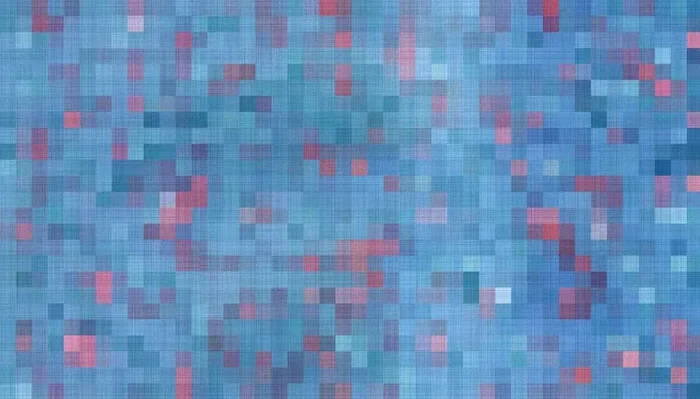
Graphics and images are stored in a computer as binary data made up of pixels, color codes, and compression algorithms. Whether it is a photograph or a logo, your computer breaks every image into tiny data points that can be saved, shared, and displayed. Understanding this process helps you choose the right file format and get better image quality every time.
Key Takeaways
- Raster images use pixels: Every digital photo is a grid of tiny colored squares called pixels.
- Vector graphics use math: Logos and illustrations are stored as formulas, not pixels.
- File formats matter: JPEG, PNG, GIF, and SVG each serve different purposes.
- Color depth affects quality: More bits per pixel means more colors and better detail.
- Compression saves space: Lossy and lossless compression reduce file sizes in different ways.
- Your graphics card plays a role: It helps decode and render images on your screen.
📑 Table of Contents
- What Happens When You Save an Image on Your Computer
- Raster vs Vector Graphics
- How Pixels Create the Images You See
- Common File Formats and How They Work
- Color Depth and How It Affects Image Quality
- How Your Computer Displays Stored Images
- Common Mistakes People Make With Image Storage
- Final Thoughts on How Images Are Stored
What Happens When You Save an Image on Your Computer
Every time you save a photo or a graphic, your computer does something remarkable. It takes a visual scene and turns it into pure data. This data is made of ones and zeros — binary code that your machine can read, store, and display later.
The process starts the moment you capture or create an image. Your device scans or renders the picture and then breaks it down into small units called pixels. Each pixel gets a specific color value. These values are then encoded into a file format your computer can understand.
Think of it like a giant coloring book. Each tiny square has a number that tells the computer which color to use. When you open the file, your computer reads those numbers and fills in the squares to recreate the image on your screen.
Why This Matters for Everyday Users
You might not think about this process when you snap a selfie or download a meme. But knowing how graphics and images are stored in a computer helps you make smarter choices. You will pick better file types. You will understand why some photos look sharp and others look blurry. And you will know how to save space on your hard drive without losing quality.
Raster vs Vector Graphics
There are two main ways computers store images. Understanding the difference is key to working with digital graphics effectively.
Raster Graphics
Raster images are made of a fixed grid of pixels. Every pixel has its own color information. When you zoom in on a raster photo, you eventually see those individual squares. Common raster formats include JPEG, PNG, and GIF.
Raster graphics are best for photographs and complex images with lots of color variations. They are the go-to format for digital cameras, social media posts, and web graphics.
Vector Graphics
Vector images work very differently. Instead of pixels, they use mathematical formulas to draw shapes, lines, and curves. Because of this, you can scale a vector image up or down without losing any quality.
Vector graphics are perfect for logos, icons, and illustrations. The most common vector format is SVG (Scalable Vector Graphics). If you have ever resized a logo and it stayed perfectly sharp, you were looking at a vector file.
| Feature | Raster | Vector |
|---|---|---|
| Made of | Pixels | Math formulas |
| Scalability | Loses quality when enlarged | Scales perfectly |
| Best for | Photos, complex images | Logos, icons, illustrations |
| File sizes | Often larger | Usually smaller |
| Common formats | JPEG, PNG, GIF | SVG, EPS, AI |
How Pixels Create the Images You See
A pixel is the smallest unit of a digital image. The word comes from “picture element.” Your screen displays thousands or millions of these tiny dots side by side. Together, they form the complete picture you see.
Each pixel holds color information. Computers use a system called RGB, which stands for Red, Green, and Blue. By mixing these three colors at different intensities, your screen can produce millions of colors. A pixel with full red and no green or blue looks red. Equal parts of all three make white. No color at all makes black.
The number of pixels in an image determines its resolution. A higher resolution means more pixels packed into the same space. This leads to sharper, more detailed images. When you hear terms like 1080p or 4K, they refer to the pixel count on a display.
Image Resolution Explained
Resolution is measured in width by height. A 1920×1080 image has 1,920 pixels across and 1,080 pixels down. That gives you over two million pixels total. More pixels mean more detail, but they also mean larger file sizes.
Image resolution is one of the most important factors in digital image quality. When you are choosing a camera or setting up a design project, resolution should always be on your mind.
Common File Formats and How They Work
Computers use different file formats to store images. Each format has its own strengths and weaknesses. Here is a look at the most popular ones.
JPEG
JPEG is the most widely used image format on the web. It uses lossy compression, which means it throws away some data to make the file smaller. This works great for photographs where tiny details are hard to notice. However, every time you save a JPEG, it loses a little quality.
PNG
PNG uses lossless compression. This means no data is lost when you save the file. PNG also supports transparent backgrounds, making it ideal for graphics and web design elements.
GIF
GIF supports animation and uses a limited color palette of 256 colors. It is great for simple animated images but not suitable for photos with rich color gradients.
SVG
SVG is a vector format used on the web. It stays sharp at any size and is perfect for responsive design and icons.
BMP and TIFF
BMP is an older uncompressed format that creates very large files. TIFF is often used in professional printing and photography because it supports high quality and lossless compression.
Color Depth and How It Affects Image Quality
Color depth refers to how much color information each pixel can hold. The more bits used per pixel, the more colors the computer can represent.
An 8-bit image can display 256 colors. A 16-bit image can display over 65,000 colors. A 24-bit image, which is standard for most digital photos, can show about 16.7 million colors. This is why your photos look so rich and vibrant on your screen.
Higher color depth means better image quality, but it also means larger file sizes. When you are storing thousands of images, you need to balance quality with storage space.
Quick Tips for Managing Image Storage
- Use JPEG for photos you want to share online.
- Choose PNG when you need transparency or sharp edges.
- Save your original files in a lossless format before compressing.
- Use image compression tools to reduce file size without visible quality loss.
- Back up important images in multiple formats for safety.
How Your Computer Displays Stored Images
Once an image file is saved, your computer needs to read it and show it on your screen. This process is called rendering. Your graphics card and processor work together to decode the binary data and turn it into the visual you see.
The image file is loaded into your computer’s memory. The graphics card then interprets the pixel data and color values. It sends signals to your monitor, which lights up the correct pixels to recreate the image.
This all happens in milliseconds. That is why you can open a photo and see it instantly, even if it is a large, high-resolution file.
The Role of Image Compression
Image compression plays a huge role in how graphics and images are stored in a computer. There are two types: lossy and lossless.
Lossy compression removes data that the human eye is unlikely to notice. It greatly reduces file size but permanently removes some detail. JPEG uses this method.
Lossless compression reduces file size without losing any data. The original image can be perfectly reconstructed from the compressed file. PNG and TIFF use lossless methods.
Choosing the right compression type depends on your needs. For web images where speed matters, lossy compression works well. For professional work where quality is critical, lossless is the better choice.
Common Mistakes People Make With Image Storage
Many users run into problems because they do not understand how digital images work. Here are a few common mistakes to avoid.
- Saving the same image over and over as a JPEG. Each save degrades the quality a little more. Always keep an original copy.
- Using the wrong format for the job. A JPEG will not work well for a logo with sharp lines. Use a vector format instead.
- Ignoring resolution when printing. Low-resolution images look blurry when printed at a large size.
- Not backing up image files. Hard drives fail. Always keep copies in more than one place.
- Assuming all formats are the same. Each format has unique features. Learning what they do saves you headaches later.
Final Thoughts on How Images Are Stored
Understanding how graphics and images are stored in a computer gives you more control over your digital life. From pixels and color depth to file formats and compression, every piece plays a role in the quality and size of your images.
Whether you are a casual user sharing photos online or a designer working on professional projects, this knowledge helps you make better decisions. You will choose the right format. You will manage your storage more efficiently. And you will get better results from every image you work with.
The next time you save a photo or download an image, take a moment to think about what is happening behind the scenes. Your computer is performing a tiny miracle of data encoding and decoding every single time. It is a fascinating process that makes our digital world possible.
Frequently Asked Questions
What is the difference between raster and vector images?
Raster images are made of pixels and lose quality when enlarged. Vector images use mathematical formulas and can be scaled to any size without losing sharpness. Photos are usually raster, while logos are typically vector.
Which image format is best for web use?
JPEG is great for photographs on the web because it keeps file sizes small. PNG is better for graphics with transparent backgrounds or sharp lines. SVG is ideal for icons and logos that need to look sharp on all screen sizes.
Does higher color depth mean better image quality?
Yes, higher color depth allows more colors to be displayed, which leads to smoother gradients and more realistic images. However, it also increases file size, so there is a trade-off between quality and storage.
What is image compression and why does it matter?
Image compression reduces file size by removing or reorganizing data. Lossy compression permanently removes some data for smaller files. Lossless compression reduces size without losing any quality. Choosing the right type depends on your needs.
Can I recover quality after saving an image as a JPEG multiple times?
No, each time you save a JPEG, it loses more data through a process called generation loss. Always keep an original copy in a lossless format like PNG or TIFF before sharing or compressing.
What role does the graphics card play in displaying images?
Your graphics card decodes the binary data stored in image files and sends the pixel information to your monitor. It is essential for rendering images quickly and smoothly, especially for high-resolution displays and video content.
=== CONCLUSION ===
Now you know how graphics and images are stored in a computer. From pixels and color depth to file formats and compression, every detail matters. Use this knowledge to store, share, and display your images with confidence.