

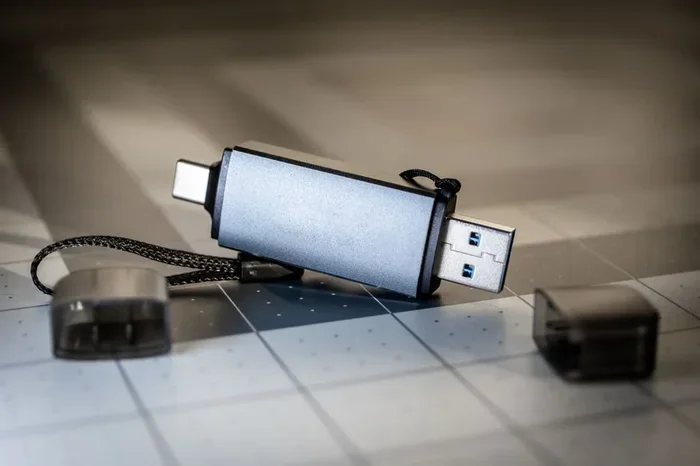
Learning how to make two USB headphones work at the same time is easier than you think. You can use a USB hub, an audio splitter, or built-in OS settings to share audio between two pairs of headphones. This guide walks you through every method so you can enjoy simultaneous listening with friends, family, or coworkers.
Have you ever wanted to listen to music or watch a movie with a friend but only had one set of USB headphones? It happens to all of us. The good news is that making two USB headphones work at the same time is totally doable. You do not need to be a tech expert either. With the right tools and a few simple steps, you can share audio from one computer to two pairs of headphones easily.
In this guide, we will walk you through every method that works. Whether you are using Windows, macOS, or even a Linux machine, there is a solution for you. We will cover USB hubs, audio splitters, software tricks, and built-in operating system features. By the end, you will know exactly which method fits your needs best.
Key Takeaways
- USB Hub Method: A simple USB hub lets you connect two USB headphones to one computer without extra software.
- Audio Splitter Option: A 3.5mm audio splitter works well for analog connections and is very affordable.
- OS Settings Matter: Both Windows and macOS allow you to set multiple audio output devices at once.
- Virtual Audio Cable: Advanced users can route audio to two outputs using free software tools.
- Common Mistakes Exist: Avoid using cheap splitters and always check driver compatibility first.
- Gaming and Work Use Cases: Sharing audio is great for gaming, watching movies, or collaborative work.
📑 Table of Contents
- Why Would You Want Two USB Headphones at Once?
- Method 1: Use a USB Hub to Connect Both Headphones
- Method 2: Use an Audio Splitter Cable
- Method 3: Adjust Your Operating System Audio Settings
- Method 4: Use Virtual Audio Cable Software
- Common Mistakes to Avoid
- Which Method Is Best for You?
- Final Thoughts
Why Would You Want Two USB Headphones at Once?
There are many reasons people want to share audio from one source. Maybe you and your partner want to watch a movie together without fighting over the remote. Perhaps you are in a classroom or training session and need multiple people to hear the same audio. Some people use this setup for gaming, where two players share the same computer but each need their own headphones.
Whatever your reason, sharing audio between two headphones is a practical solution. It saves money because you do not need to buy duplicate headphones. It also promotes shared experiences, which is always a nice bonus. Let us now look at the different ways you can make this happen.
Method 1: Use a USB Hub to Connect Both Headphones
What You Need
A basic USB hub is the simplest way to make two USB headphones work simultaneously. A USB hub adds extra ports to your computer, so you can plug in both headphones at the same time. Most USB hubs cost under fifteen dollars and work right out of the box.
How to Set It Up
- Plug the USB hub into your computer.
- Connect the first USB headphone to one port on the hub.
- Connect the second USB headphone to another port on the hub.
- Wait for your computer to recognize both devices.
- Go to your sound settings and set both as output devices.
This method works great for most users. The only thing to watch out for is power. If your USB hub does not have its own power supply, it might struggle to run two audio devices at once. A powered USB hub solves this problem easily.
Method 2: Use an Audio Splitter Cable
An audio splitter is another popular option. This is a small cable that splits one audio output into two. You plug the splitter into your computer, and then connect both headphones to the splitter ends. It is a plug-and-play solution that requires no software.
However, there is a catch. A standard audio splitter splits the audio signal, which means both headphones get the same sound at a lower volume. You may need to turn up your computer volume to compensate. Also, make sure you get a dual headphone splitter that supports the type of connection your headphones use.
Method 3: Adjust Your Operating System Audio Settings
On Windows
Windows has a built-in feature that lets you use multiple audio output devices at the same time. Here is how to do it:
- Right-click the speaker icon in your taskbar.
- Click “Open Sound settings.”
- Scroll down to “Advanced sound options.”
- Under “Playback devices,” you should see both headphones listed.
- Set both as default and adjust their volumes independently.
On macOS
macOS also supports multiple audio outputs, but you need to create an “Aggregate Device” first. Go to Audio MIDI Setup, click the plus sign, and select “Create Aggregate Device.” Then check both headphones and set the aggregate device as your output. This trick is a game changer for Mac users.
Method 4: Use Virtual Audio Cable Software
If you want more control over your audio routing, virtual audio cable software is the way to go. Programs like Voicemeeter or VB-Audio Cable let you route audio to multiple outputs simultaneously. This method is perfect for advanced users who want to mix audio or adjust levels for each headphone separately.
The software creates virtual audio channels on your computer. You then assign each headphone to a different channel. This gives you full control over volume, balance, and audio quality for both devices.
Common Mistakes to Avoid
Not all methods work perfectly every time. Here are some common mistakes people make when trying to share audio:
- Using a cheap, unpowered USB hub: This can cause audio dropouts or one headphone not being recognized.
- Ignoring driver updates: Outdated audio drivers can cause compatibility issues with multiple devices.
- Using incompatible splitters: Make sure your splitter matches your headphone connector type.
- Not testing volume levels: Always check that both headphones play at a comfortable volume before sharing.
Which Method Is Best for You?
The best method depends on your situation. If you want simplicity, a USB hub is the way to go. If you are on a budget, an audio splitter works well. For power users who want full control, virtual audio cable software is the top choice. Each method has its strengths, and all of them get the job done.
No matter which method you pick, the goal is the same: to enjoy shared audio without any hassle. Making two USB headphones work at the same time opens up new possibilities for watching, gaming, and collaborating.
Final Thoughts
Sharing audio between two headphones is a simple but powerful trick. Whether you are at home, in the office, or in a classroom, the methods in this guide will help you get it done quickly. Start with the USB hub method if you are new to this. Once you see how easy it is, you might want to try the software options for even more control.
The next time someone asks you, “How can I make two USB headphones work at the same time?” you will have the perfect answer. Share this guide with them and enjoy your shared listening experience.
Frequently Asked Questions
Can I connect two USB headphones to any computer?
Yes, most modern computers support multiple USB audio devices. You may need a USB hub if your computer has limited ports. Both Windows and macOS handle dual headphone connections with ease.
Will both headphones have the same volume?
Not always. With a USB hub or OS settings, you can adjust the volume for each headphone independently. With an audio splitter, both headphones share the same volume level by default.
Do I need special software to make this work?
No, you do not always need special software. A USB hub or audio splitter works without any downloads. However, virtual audio cable software gives you more control if you need it.
Can I use two different brands of USB headphones together?
Absolutely. USB headphones are standardized, so any brand works with any computer. As long as both headphones are recognized by your operating system, they will work together fine.
Is there a delay when using two headphones at once?
Usually there is no noticeable delay. A powered USB hub provides the most stable performance. If you do experience lag, try updating your audio drivers or switching to a different port.
Can I use this setup for gaming?
Yes, sharing audio for gaming works well with all the methods described. Virtual audio cable software is especially useful for gaming because it lets you adjust game audio and voice chat separately for each headphone.