

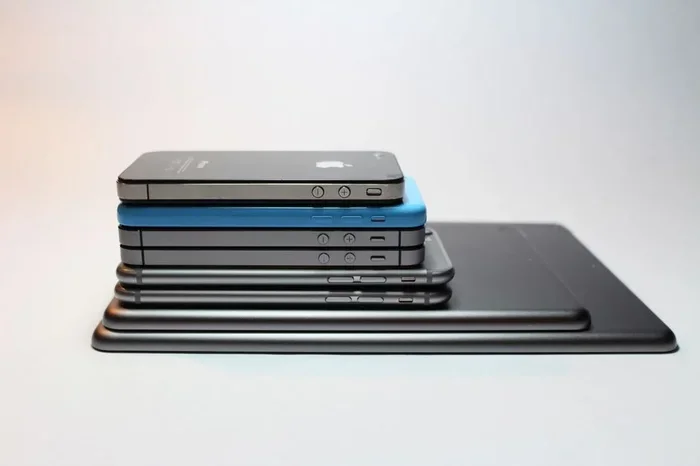
How Can I Tell What Generation My iPhone Is? You can find your iPhone generation by checking the Settings app, reading the model number on the back of your device, looking up your serial number, or using free online tools. Each method takes less than a minute and works for every iPhone model.
Have you ever picked up an iPhone and wondered exactly which generation it belongs to? Whether you just bought a used device or found an old one tucked away in a drawer, knowing your iPhone generation helps you understand what it can and cannot do.
Checking your iPhone generation is simpler than most people think. You can do it right from the device itself in just a few taps. In this guide, we will walk you through every reliable method to identify your iPhone model. You will learn how to check settings, read engravings, and use online tools to find your answer quickly.
How Can I Tell What Generation My iPhone Is? The good news is that there are multiple straightforward ways to find out. Each method works regardless of whether you have a newer or older model. Let us dive into the details and help you figure this out right now.
Key Takeaways
- Check the Settings App: Go to General, then About to find your Model Name and Model Number instantly.
- Read the Back Engravings: Look for the “Model A” number near the Apple logo on the device body.
- Use Your Serial Number: Visit Apple’s Check Coverage page for detailed device information and generation confirmation.
- Try Online Lookup Tools: Websites like EveryMac and GSMArena let you enter your model number and get full specs.
- Know the Model Number vs Part Number: The Model Number starts with the letter M or F, while the Part Number starts with P.
- Avoid Common Mistakes: Do not guess by size or the Home Button alone, since many generations look similar.
- It Matters for Real Reasons: Knowing your generation helps with app compatibility, trade-in value, and understanding supported features.
📑 Table of Contents
How Can I Tell What Generation My iPhone Is Using These Methods
There are several proven ways to identify your iPhone. Each method gives you accurate results, and you can use more than one to double-check your answer. Let us explore each approach step by step.
Check Your iPhone Settings
The fastest way to identify your iPhone is through the device settings. This method works on every iPhone model, from the oldest to the newest. You do not need any special tools or technical knowledge.
Open the Settings app on your iPhone. Tap on General, then tap About. Look for the Model Name field. This will show you something like iPhone 15 Pro or iPhone SE. Next to the model name, you will see a Model Number. That number starts with a letter followed by digits, such as A2890 or A2599.
Here is a quick breakdown of what you will find in the Settings menu:
- Model Name: Shows the consumer-facing name like iPhone 14 or iPhone 13
- Model Number: A letter-number code like A2770 or A2488
- Storage Capacity: Shows 64GB, 128GB, 256GB, or 512GB
- iOS Version: Tells you which version of the operating system is installed
The Model Number is the most reliable identifier. Apple uses different numbers for the same device sold in different regions. So your friend might have a different Model Number for the same iPhone generation.
Look at the Back of Your iPhone
Every iPhone has small engravings on the back near the bottom. These markings have been used since the original iPhone in 2007. If your screen is cracked or your Settings app is not working, this physical method saves the day.
Flip your iPhone over and look at the back. Just below the Apple logo, you will see small text. It reads something like “Model A2890” or “Model A2636.” The letter A followed by four digits is your iPhone model identifier.
The engraving tells you the exact model identifier. You can then look up this number on Apple’s website or any model lookup tool. Each identifier corresponds to one specific iPhone generation. For example, Model A2890 is the iPhone 15 Pro, while Model A2636 is the iPhone 14.
Quick Tip: If the engraving is hard to read, use a flashlight and magnifying glass. Older iPhones tend to have faded text, so good lighting makes a big difference when checking your device information.
Use Your iPhone Serial Number
Your serial number is unique to your device. It tells Apple exactly which unit it is and when it was manufactured. While it does not directly say “iPhone 15,” it can reveal your generation through Apple’s lookup tools.
Go to Settings, then General, then About. Scroll down until you see Serial Number. You can also find it on the original packaging or on your SIM tray. The SIM tray engraving is especially helpful if your phone has a damaged screen.
Visit Apple’s Check Coverage page at apple.com/support/checkcoverage. Enter your serial number. The page will show your iPhone model, purchase date, warranty status, and other key details. This is one of the most accurate ways to confirm your iPhone identification.
Use Online Tools to Identify Your iPhone
If you prefer not to dig through settings, several online tools can do the work for you. These tools are free and very user-friendly.
Apple has a dedicated page where you can enter your Model Number. Go to support.apple.com and search for “iPhone model number.” Enter the letter-number code you found in Settings or on the back of the device. The page will display the full iPhone name, release year, and specs.
Websites like everymac.com and GSMArena offer model lookup tools. You enter the Model Number or Model Identifier, and the site tells you the exact iPhone generation. These tools also show you the full iPhone specs, including camera details, battery capacity, and supported network bands.
Why Knowing Your iPhone Generation Matters
Understanding your iPhone generation is not just trivia. It has real practical value in everyday use. When you know what device you have, you make better decisions about apps, updates, and even selling your phone.
New apps and iOS updates often require newer hardware. When you know your iPhone generation, you can check whether a specific app or update will work. Older iPhones may not support the latest iOS features, which affects performance and security.
If you plan to sell or trade in your iPhone, knowing the exact generation helps you set a fair price. Buyers and trade-in programs use the iPhone model number to determine value. Having this information ready shows you are informed and builds trust.
Knowing your generation also helps you understand which features your device supports. Some iPhones have Face ID, while others use Touch ID. Some support 5G, while others are limited to 4G LTE. All of this comes down to the specific iPhone release year and generation.
Common Mistakes People Make When Identifying Their iPhone
Many people make simple errors when trying to figure out their iPhone generation. Avoid these mistakes to save time and frustration.
- Confusing the Model Number with the Part Number: The Part Number tells you the regional variant, not the generation. Always use the Model Number for iPhone identification.
- Relying Only on the Home Button: Not all iPhones have a Home Button. The iPhone X and newer models removed it. Using the Home Button as a clue can lead you wrong.
- Guessing by Size Alone: iPhones come in similar sizes across generations. The iPhone 13 and iPhone 14 are nearly identical in dimensions. Always verify with the iPhone model number.
Conclusion
Now you know exactly how to find out what generation your iPhone is. You can check the Settings app, read the engravings on the back, use your serial number, or try online lookup tools. Each method is quick and reliable.
The next time someone asks you, “How Can I Tell What Generation My iPhone Is,” you will have all the answers ready. Whether you need this for troubleshooting, selling, or just curiosity, these methods will never let you down. Take a moment right now to check your own iPhone and see what generation you are using. It only takes a minute and gives you valuable knowledge about your device.
Frequently Asked Questions
How do I find my iPhone model number?
Go to Settings, then General, then About. Look for the Model Name and Model Number fields. You can also find the Model Number engraved on the back of your device, just below the Apple logo.
Can I tell my iPhone generation by its size?
No, size alone is not reliable. Many iPhone generations have very similar dimensions, like the iPhone 13 and iPhone 14. Always check the Model Number or Model Identifier for accurate identification.
What is the difference between a Model Number and a Part Number?
The Model Number starts with the letter M or F and tells you the device generation. The Part Number starts with the letter P and tells you the regional variant. Use the Model Number to find your iPhone generation.
Where can I look up my iPhone serial number online?
Visit Apple’s Check Coverage page at apple.com/support/checkcoverage. Enter your serial number to see your iPhone model, purchase date, and warranty status. You can also find your serial number in Settings under General and About.
Do I need any special tools to identify my iPhone?
No special tools are needed. You can identify your iPhone generation using the Settings app, the engravings on the back, or free online lookup tools. A flashlight and magnifying glass can help if the engravings are hard to read.
Why does my Model Number differ from my friend’s even though we have the same iPhone?
Apple uses different Model Numbers for the same iPhone generation depending on the region where it was sold. For example, an iPhone bought in the US may have a different Model Number than the same iPhone bought in Europe or Asia.