

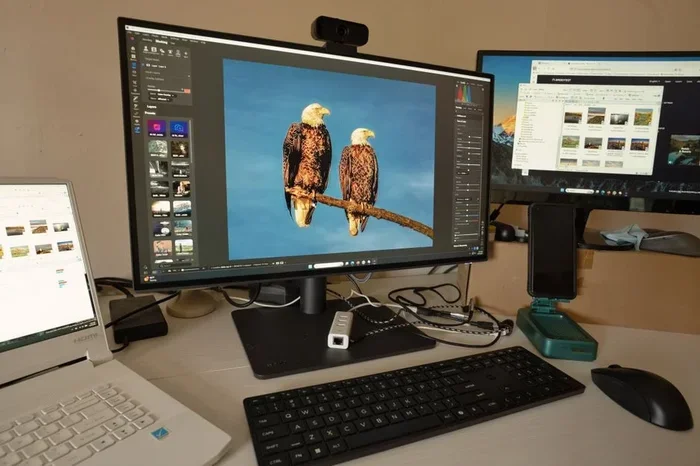
Changing a Photoshop document to landscape is simple and fast once you know the right steps. Whether you need to flip from portrait to landscape for printing, web design, or social media, Photoshop offers several built-in methods. This guide walks you through every approach with clear, easy-to-follow instructions. You will learn how to adjust canvas size, rotate the canvas, and set landscape mode in page setup — all without losing image quality.
Have you ever opened a Photoshop file and realized it is in portrait mode when you need landscape? It happens to the best of us. Maybe you are designing a banner, preparing a print layout, or building a website hero image. The good news is that changing a document to landscape takes only a few clicks. You do not need to be a Photoshop expert to pull this off.
In this guide, we will walk you through every method step by step. You will learn the fastest way to rotate your canvas, how to resize the document properly, and a few tips that will save you time on future projects. Let us dive right in.
Key Takeaways
- Canvas Size Method: Adjust the width and height values to switch to landscape orientation quickly.
- Rotate Canvas: Use the rotate function to flip a portrait document into landscape mode instantly.
- Page Setup for Print: Change the orientation in the print dialog before sending to a printer.
- New Document Presets: Start fresh with a landscape preset to avoid reworking existing files.
- Aspect Ratio Matters: Understanding aspect ratios helps you choose the right landscape dimensions every time.
- No Quality Loss: These methods preserve your image resolution and sharpness throughout the process.
📑 Table of Contents
Understanding Portrait vs. Landscape Orientation
Before you make any changes, it helps to understand what these terms mean. Portrait orientation is taller than it is wide. The standard sizes are 8.5 x 11 inches or 1080 x 1920 pixels. Landscape orientation is wider than it is tall. Common landscape sizes include 11 x 8.5 inches or 1920 x 1080 pixels.
The key difference comes down to the aspect ratio. This is the proportional relationship between width and height. When you switch from portrait to landscape, you are essentially swapping those values. The image itself does not change — only the canvas does.
Why Does Orientation Matter?
Orientation affects how your design looks and where it fits. A social media banner needs landscape to display correctly on desktop screens. A printed poster might require landscape for a specific frame. Getting the right orientation ensures your work looks polished and professional.
Method 1: Change Canvas Size to Landscape
This is the most common approach. You will use the Canvas Size dialog to adjust your document dimensions. Here is how to do it:
- Open your Photoshop document.
- Go to the Image menu at the top.
- Select Canvas Size from the dropdown.
- A dialog box will appear showing the current dimensions.
- Enter your desired width and height for landscape mode.
- Make sure the unit is set to pixels, inches, or your preferred measurement.
- Click OK to apply the changes.
When you open the Canvas Size dialog, you will notice a preview box. This shows you how the new canvas will look. You can choose where to anchor the existing image — center, top, bottom, or any corner. Anchoring controls which part of the image stays in place while the canvas expands.
If your current document is 800 x 1200 pixels (portrait), simply swap the values to 1200 x 800 pixels (landscape). Photoshop will add blank space if the new canvas is larger than the image. You can fill this space with a background color or leave it transparent.
Quick Tip for Canvas Size
Use the Relative checkbox if you want to add or subtract space from one side only. This is handy when you need a small adjustment rather than a full orientation swap.
Method 2: Rotate the Canvas
Another fast way to switch to landscape is by rotating the entire canvas. This works best when your image already fills the document and you simply need to flip the orientation.
Here is what to do:
- Open your document in Photoshop.
- Navigate to the Image menu.
- Click on Image Rotation.
- Choose 90 degrees CW or 90 degrees CCW depending on your needs.
- The canvas will rotate, turning portrait into landscape instantly.
This method is great because it does not change your pixel dimensions. The image quality stays exactly the same. You are simply turning the entire workspace sideways.
When to Use Canvas Rotation
Use this method when you have a photo or design that is already sized correctly. You just need to change the orientation for a different output. For example, a photo that is 1920 x 1080 in portrait mode can be rotated to fit a landscape layout perfectly.
Method 3: Set Landscape in Page Setup for Printing
If your goal is to print the document in landscape, you can change the orientation directly in the print settings. This does not alter your actual document — it only affects how it prints.
Follow these steps:
- Go to File and select Print.
- In the print dialog, look for the Page Setup or Print Settings section.
- Find the Orientation option.
- Select Landscape from the dropdown menu.
- Adjust other print settings as needed.
- Click Print to send the job to your printer.
This method is perfect when you are working on a document that stays in portrait mode but needs to print on a landscape-oriented paper. Many people use this for flyers, posters, and presentation slides.
Important Note About Print Settings
Always check your printer margins before printing in landscape. Some printers cannot print to the very edge of the paper. This means you might lose a small portion of your design if it extends too close to the border.
Method 4: Create a New Document in Landscape
Sometimes the best approach is to start fresh. If your current document is too small or too cropped, creating a new landscape document gives you a clean slate.
Here is how:
- Go to File and select New.
- In the New Document dialog, set the width to a larger value than the height.
- Choose a preset like Letter, Tabloid, or Custom.
- Set the resolution to 300 PPI for print or 72 PPI for web.
- Click Create to generate the new landscape document.
- Copy and paste your existing content into the new file.
This method gives you full control over every setting. You can choose the exact dimensions, color mode, and background contents before you start working.
Using Presets Wisely
Photoshop comes with many built-in presets for common landscape sizes. The Web category includes landscape banner sizes like 1200 x 628 pixels for Facebook covers. The Print category offers standard paper sizes in landscape orientation. Picking a preset saves you from manual calculations.
Common Mistakes to Avoid
Even simple tasks in Photoshop can lead to problems if you are not careful. Here are some common mistakes people make when changing to landscape:
- Forgetting to check the anchor point: When you resize the canvas, the image may shift to an unexpected position if you do not set the anchor correctly.
- Ignoring aspect ratio: Stretching or squishing your image to fit landscape dimensions will distort it. Always swap the width and height values instead of changing them independently.
- Not saving a copy: Always save a duplicate of your original file before making orientation changes. This way, you can always go back if something goes wrong.
- Confusing canvas rotation with image rotation: Rotating the canvas turns the entire workspace. Rotating the image layer turns just the content. Know which one you need.
How to Avoid These Mistakes
The easiest way to prevent errors is to work on a copy of your file. Use File > Save As to create a new version before you start editing. This keeps your original safe and gives you a backup if anything does not look right.
Expert Tips for Working in Landscape
Once your document is in landscape mode, a few extra tips can help you get better results. First, always check your rulers and guides. Go to View > Rulers to display measurement guides. These help you align elements precisely within the wider canvas.
Second, use the Rule of Thirds grid when composing your design. Go to View > Show Grid to overlay a helpful grid on your canvas. This classic design principle works beautifully in landscape orientation because it naturally divides the wider space into balanced sections.
Third, preview your work at actual size before finalizing. Go to View > Actual Pixels to see exactly how your design will look when printed or displayed. This small habit can save you from surprises later.
Changing a Photoshop document to landscape does not have to be complicated. Whether you use the Canvas Size tool, rotate the canvas, adjust print settings, or start a new document, each method is straightforward and effective. The key is to choose the right method for your specific need and to always work on a copy of your original file.
Now that you know all the methods, try them out on your next project. You will find that switching to landscape becomes second nature with just a little practice. Your designs will look more professional, and your workflow will become faster and more efficient.
Frequently Asked Questions
Can I change a Photoshop document from portrait to landscape without losing quality?
Yes, absolutely. Methods like canvas rotation and canvas resizing do not alter your image resolution or pixel data. As long as you do not stretch or compress the image itself, the quality stays exactly the same. Always use the swap method for width and height to maintain the correct aspect ratio.
What is the shortcut to rotate the canvas in Photoshop?
You can use the shortcut Shift + Ctrl + R on Windows or Shift + Cmd + R on Mac to quickly access the rotate canvas options. This saves you time compared to navigating through the menu every time you need to rotate.
Does changing canvas size delete any part of my image?
No, changing canvas size only adds or removes space around your image. The actual image content stays intact. However, if you reduce the canvas size below the image dimensions, parts of the image may be clipped. Always preview the canvas size dialog before confirming.
Can I switch back from landscape to portrait easily?
Yes, you can reverse any of the methods described in this guide. Simply swap the dimensions back, rotate the canvas in the opposite direction, or change the page setup orientation to portrait. Working on a copy of your file makes it even safer to experiment.
What landscape size should I use for a social media banner?
For most social media platforms, a landscape banner size of 1200 x 628 pixels works well for Facebook covers. For YouTube thumbnails, use 1280 x 720 pixels. These standard landscape dimensions ensure your designs display correctly across devices without any cropping or distortion.
Is there a difference between landscape canvas and landscape image?
Yes, there is a difference. The canvas is the workspace around your image. The image is the actual content inside that workspace. Changing the canvas to landscape adds space or rotates the workspace, while changing the image itself means transforming the pixel data. Understanding this distinction helps you choose the right tool for the job.
=== CONCLUSION ===
Changing a Photoshop document to landscape is one of the most basic yet essential skills you can learn. Whether you are preparing a file for print, designing a web banner, or setting up a social media graphic, knowing how to switch orientations quickly makes a big difference. You now have four reliable methods at your fingertips: canvas size adjustment, canvas rotation, page setup changes, and creating a new landscape document from scratch.
Remember to always work on a copy of your file, check your aspect ratio, and preview your design before finalizing. These small habits will keep your workflow smooth and your designs looking sharp. Practice these steps, and you will be switching between portrait and landscape like a pro in no time.