

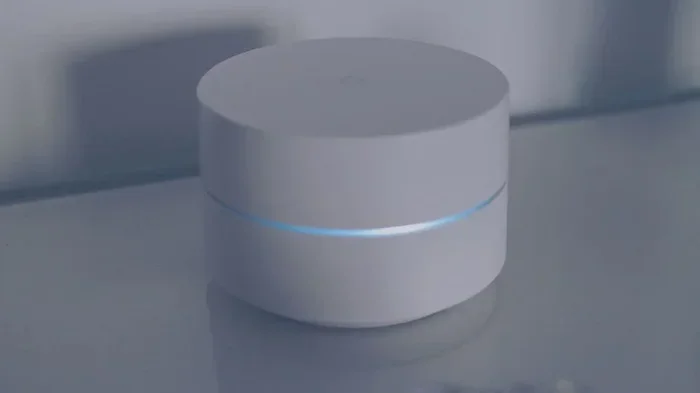
Accessing your wireless modem is simpler than you think. You can log in through your web browser using your modem’s IP address, username, and password. This guide walks you through every step, from finding your default gateway to changing your network settings and boosting your Wi-Fi signal.
Ever stared at your wireless modem wondering how to get inside and change something? Maybe your Wi-Fi keeps dropping, or you want to set up a guest network. Whatever the reason, accessing your wireless modem is a skill everyone should have. The good news is that it only takes a few minutes, and you do not need to be a tech expert.
In this guide, we will walk you through the entire process step by step. You will learn how to find your modem’s login page, what to do if you forget your password, and how to tweak settings for a better internet experience. Let us get started.
Key Takeaways
- Easy Access: You can reach your modem settings using any web browser on a connected device.
- Default Login Details: Most modems use standard admin credentials printed on the device label.
- Troubleshooting Help: Resetting your modem or checking cables can solve most access issues.
- Security Matters: Changing default passwords and updating firmware keeps your network safe.
- Better Performance: Adjusting channel settings and placement can improve your wireless signal strength.
📑 Table of Contents
What Is a Wireless Modem and Why Access It?
A wireless modem is the device that connects your home to the internet. It takes the signal from your internet service provider and broadcasts it as a Wi-Fi network. Think of it as the gateway between the outside world and all your connected devices.
There are many reasons you might want to log into your modem. You may need to update your network password, change your Wi-Fi channel, or check which devices are connected. Some people also access their modem to update the firmware, which keeps the device running smoothly and securely.
Common Reasons to Access Your Modem
- Change your Wi-Fi network name or password
- Check connected devices on your network
- Update modem firmware for security patches
- Adjust wireless channel settings for better speed
- Set up parental controls or guest networks
- Troubleshoot slow internet or connection drops
How to Access Your Wireless Modem Step by Step
The process is straightforward once you know the basics. Here is exactly what you need to do.
Step 1: Connect to Your Modem
First, make sure your device is connected to the modem. You can use a Wi-Fi connection or plug in directly with an ethernet cable. The ethernet option is more stable, especially if you are troubleshooting a connection problem.
If you do not know your Wi-Fi password, look for a sticker on the bottom or back of your modem. It usually lists the default network name and password.
Step 2: Open Your Web Browser
Launch any web browser on your phone, tablet, or computer. You can use Chrome, Firefox, Safari, or Edge. It does not matter which one you choose.
Step 3: Type in the Modem IP Address
Now, type your modem’s default gateway IP address into the browser bar. The most common addresses are 192.168.1.1 or 192.168.0.1. If neither works, you can find the correct one by opening your command prompt and typing ipconfig on Windows or netstat -nr on Mac.
Step 4: Enter Your Login Credentials
A login page will appear. Enter the default username and password. Most modems use “admin” for both fields, or “admin” and “password.” Check the label on your modem if you are unsure.
Once inside, you are in the modem admin panel. This is where you can adjust all your settings.
Troubleshooting: What If You Cannot Access Your Modem?
Sometimes things do not go as planned. Here are the most common problems and how to fix them.
Problem 1: The Login Page Will Not Load
This usually happens because your device is not on the same network as the modem. Double-check your Wi-Fi connection. Also, try clearing your browser cache or using a different browser. Some modem setups work better with a wired connection, so plug in if possible.
Problem 2: You Forgot Your Password
Do not panic. You can reset your modem to factory settings by pressing and holding the small reset button on the back for about 10 seconds. This will restore the default username and password. Keep in mind that this will erase any custom settings you have made.
Problem 3: You Get an Error Message
Error messages often mean the IP address is wrong or the modem is not responding. Try restarting your modem by unplugging it for 30 seconds and plugging it back in. Wait for the lights to stabilize before trying again.
How to Secure Your Wireless Modem After Logging In
Once you gain modem access, the first thing you should do is secure your network. Default login credentials are well known, which makes your network vulnerable if you leave them unchanged.
Essential Security Steps
- Change the admin password immediately after logging in for the first time.
- Update your Wi-Fi password to something strong and unique.
- Enable WPA3 or WPA2 encryption for the best wireless network security.
- Update the firmware to patch any known vulnerabilities.
- Disable WPS (Wi-Fi Protected Setup) as it can be a security risk.
- Hide your SSID if you want to make your network less visible to others.
Taking these steps protects your home network from unauthorized access and keeps your personal data safe.
Tips for Better Modem Performance
Accessing your modem gives you the power to improve your internet speed and stability. Here are some practical tips.
Optimize Your Wi-Fi Channel
Your modem broadcasts on specific channels. If your neighbors are using the same channel, you may experience interference. Go to your modem settings and switch to a less crowded channel. Most modern modems have an auto-select feature that does this for you.
Update Your Firmware Regularly
Modem firmware updates often include performance improvements and security fixes. Check for updates every few months. Most modem admin panels have a firmware update section under the advanced settings menu.
Place Your Modem Strategically
Even the best broadband modem cannot perform well if it is hidden behind a closet or buried under furniture. Place it in a central, elevated location for the best wireless coverage throughout your home.
When to Contact Your Internet Service Provider
Sometimes, no matter what you try, you cannot access your modem or fix the issue. That is okay. Your internet service provider has tools and remote access that can help. Call them if you experience persistent connection drops, if your modem overheats, or if the lights on the device indicate a hardware problem.
Many ISPs also offer mobile apps that let you manage your modem settings without logging in through a browser. This can be a great alternative if the web interface feels too complicated.
Conclusion
Learning how to access your wireless modem opens up a world of possibilities. You gain control over your network, improve your internet speed, and boost your security. The process is simple: connect to your modem, open a browser, enter the IP address, and log in with your credentials.
Remember to always change your default passwords and keep your firmware up to date. These small steps make a big difference. Now that you know the process, go ahead and take charge of your home network. You will be glad you did.
Frequently Asked Questions
What is the default IP address for most wireless modems?
The most common default IP addresses are 192.168.1.1 and 192.168.0.1. You can also find the correct address by checking your device’s network settings or the label on your modem.
What should I do if I forgot my modem login password?
You can reset your modem to factory settings by holding the reset button on the back for about 10 seconds. This restores the default credentials listed on the modem label.
Can I access my wireless modem from my phone?
Yes, you can access your modem from any device connected to the same network, including smartphones and tablets. Just open a browser and type in the modem IP address.
Is it safe to change modem settings?
Yes, it is safe as long as you know what you are changing. Stick to settings you understand, and always change your admin password first to protect your network.
How often should I update my modem firmware?
You should check for firmware updates every two to three months. Many modern modems also offer automatic updates, which is the easiest option for most users.
What is the difference between a modem and a router?
A modem connects your home to the internet, while a router broadcasts the Wi-Fi signal to your devices. Many ISPs provide a combined modem-router unit that handles both functions in one device.