

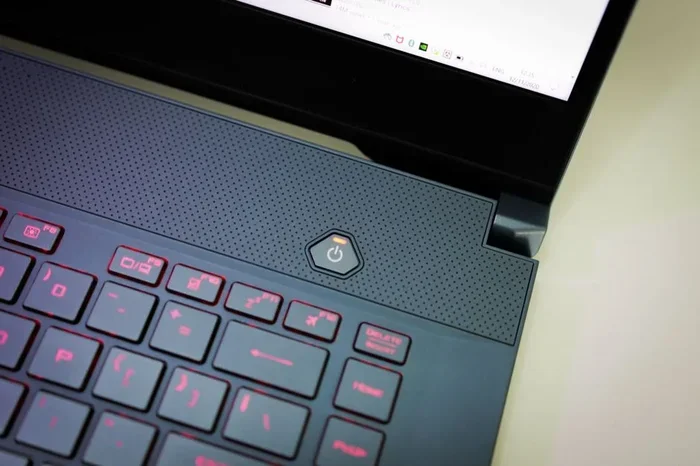
Learning how to control your Dell laptop fan is easier than you think. You can use built-in tools like Dell Power Manager, adjust BIOS settings, or install third-party software to manage fan speed. Regular maintenance and smart cooling habits also help keep your Dell laptop fan quiet and efficient.
Your Dell laptop fan can get really loud sometimes, and it is easy to wonder why. Whether you are working on a big project or just browsing the web, a noisy or overactive fan can be distracting and frustrating. The good news is that you have several practical ways to take control of your Dell laptop fan and keep things running smoothly.
Many people do not realize that their Dell laptop comes with built-in tools for managing fan speed and temperature. You do not need to be a tech expert to make a real difference. With the right settings, a little maintenance, and some helpful software, you can reduce noise, improve cooling, and extend the life of your laptop.
Key Takeaways
- Built-in tools work: Dell Power Manager and BIOS settings offer easy fan control options right on your laptop.
- Third-party software helps: Programs like SpeedFan and NoteBook FanControl give you advanced fan speed control.
- Maintenance matters: Cleaning dust and using a cooling pad significantly improves laptop cooling and airflow.
- BIOS fan settings are powerful: Custom fan curves in the Dell BIOS let you fine-tune thermal management.
- Know when to seek help: Persistent noise or overheating may signal a hardware issue that needs professional attention.
- Small changes make a big difference: Adjusting power settings and ventilation habits can reduce system temperature and laptop noise.
📑 Table of Contents
Understanding Your Dell Laptop Fan
How Your Dell Laptop Fan Works
Your Dell laptop fan is part of the thermal management system built into your device. It spins faster when the CPU or GPU gets hot and slows down when things cool off. This automatic process helps protect your hardware from damage caused by overheating.
Most Dell laptops use a basic fan curve preset by the manufacturer. This means the fan responds to temperature readings from internal sensors. You may not have much control out of the box, but there are several ways to adjust this behavior and improve heat dissipation over time.
Why Fan Control Matters
Taking charge of your Dell laptop fan gives you more than just a quieter experience. Proper fan control helps with effective heat dissipation, which keeps your system running at peak performance. When your laptop stays cool, the processor can work faster without throttling or slowing down.
Good thermal management also extends the lifespan of your internal components. Over time, excessive heat can degrade batteries, hard drives, and other sensitive parts. Controlling your fan speed is a simple yet powerful step toward better overall laptop performance and long-term reliability.
Built-In Methods to Control Your Dell Laptop Fan
Using Dell Power Manager
Dell Power Manager is a free tool that comes pre-installed on many Dell laptops. It lets you choose between different cooling profiles, such as Optimal, Cool, Quiet, and Performance. Each profile adjusts the fan speed and power usage based on what you need at that moment.
To access it, search for Dell Power Manager in your Start menu. From there, you can switch between profiles and even customize the thermal settings to suit your workflow. This is one of the easiest and most accessible ways to manage your Dell laptop fan without installing anything extra.
Adjusting Fan Settings in BIOS
Your Dell BIOS also has fan control options hidden in advanced settings. To access the BIOS, restart your laptop and press F2 when the Dell logo appears. Navigate to the System Configuration or Advanced section to find fan-related settings.
Some Dell models allow you to set a custom fan curve or choose between passive and active cooling modes. Keep in mind that changing BIOS settings can affect system stability, so proceed with caution. Always write down your original settings before making any changes to your Dell BIOS configuration.
Third-Party Software for Fan Control
Popular Fan Control Programs
If Dell Power Manager does not give you enough control, third-party software can help. Programs like SpeedFan and NoteBook FanControl let you monitor CPU temperature and manually adjust fan speed. These tools read data from your laptop’s internal sensors and give you much more granular control over the fan curve.
Another great option is Dell SupportAssist, which Dell officially supports. It runs automatic hardware diagnostics and can alert you to cooling issues before they become serious problems. It is a safe and reliable way to keep your Dell laptop fan running efficiently and your system temperature in check.
Things to Watch Out For
Not all third-party fan control apps are safe or compatible. Some may be outdated or not work well with newer Dell models. Always download software from the official website or a trusted source. Be careful with apps that promise extreme cooling results, as they may cause more harm than good to your laptop cooling system.
Physical Maintenance Tips for Better Cooling
Cleaning Dust and Debris
Dust buildup is one of the biggest enemies of your Dell laptop fan. Over time, dust clogs the vents and forces the fan to work harder than it should. This leads to louder noise and higher system temperature, which can affect your entire laptop performance.
To clean your laptop, use compressed air to blow dust out of the vents. Do this every few months, especially if you use your laptop on a bed or couch where fabric can block airflow. Keeping the vents clear improves ventilation and helps with effective laptop cooling in a big way.
Using a Cooling Pad
A cooling pad is an external stand with built-in fans that helps cool your laptop from below. It improves airflow around the bottom of the device and reduces the workload on your internal fan. This is a great accessory for anyone who uses their Dell laptop for gaming or heavy tasks.
When choosing a cooling pad, look for one with adjustable fan speeds and a size that fits your Dell model. A good cooling pad can make a noticeable difference in heat dissipation and overall laptop cooling, especially during demanding workloads.
When to Seek Professional Help
Signs That Something Is Wrong
Sometimes, controlling the fan through software is not enough. If your Dell laptop fan runs loudly all the time, shuts down unexpectedly, or makes grinding noises, there may be a hardware issue. These symptoms often point to a failing fan or a serious thermal problem that needs immediate attention.
Other warning signs include sudden shutdowns, slow performance, and the laptop feeling excessively hot to the touch. In these cases, it is best to contact Dell Support or visit a certified technician. They can run thorough hardware diagnostics and replace parts like thermal paste or the fan module if needed.
Conclusion
Controlling your Dell laptop fan does not have to be complicated. Whether you use Dell Power Manager, BIOS settings, or third-party tools, you have plenty of options to manage fan speed and keep your system cool. Regular maintenance like cleaning dust and using a cooling pad also goes a long way toward better thermal management.
Take a few minutes today to check your fan settings and clean your vents. Small steps like these can improve your Dell laptop fan performance, reduce annoying noise, and protect your investment for years to come. Your laptop will thank you with better performance and longer life.
Frequently Asked Questions
Can I manually control the fan speed on my Dell laptop?
Yes, you can use Dell Power Manager or third-party software like SpeedFan to manually adjust your Dell laptop fan speed. You can also access fan settings through the BIOS for more advanced control options.
Why is my Dell laptop fan so loud?
A loud Dell laptop fan is often caused by dust buildup, high CPU temperature, or demanding applications running in the background. Cleaning the vents and adjusting power settings can help reduce the noise significantly.
Is it safe to use third-party fan control software?
Most third-party fan control tools are safe when downloaded from official sources. However, always verify the software is compatible with your Dell model to avoid conflicts with your system’s thermal management settings.
How often should I clean my Dell laptop fan vents?
It is recommended to clean your Dell laptop fan vents every two to three months. If you use your laptop in dusty environments or on soft surfaces like beds, you may need to clean them more frequently for proper airflow.
Can a cooling pad help reduce Dell laptop fan noise?
Yes, a cooling pad improves airflow and reduces the heat your laptop generates. This means your Dell laptop fan does not need to spin as fast, which leads to quieter operation and better overall laptop cooling.
What should I do if my Dell laptop fan stops working?
If your Dell laptop fan stops working, contact Dell Support or visit a certified technician right away. A non-functioning fan can cause overheating, which may damage your internal components and affect laptop performance.