

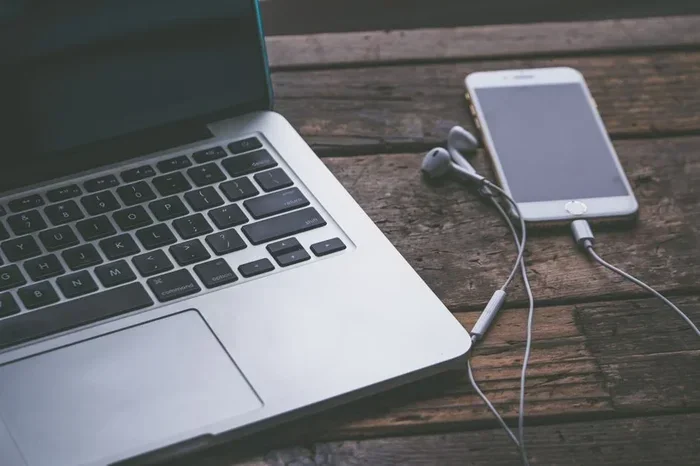
Accessing your phone from your computer is easier than you think. Whether you use USB cables, wireless apps, or cloud services, you can sync messages, files, and notifications in minutes. This guide walks you through every method so you can pick the one that works best for your setup.
Have you ever needed to grab a photo from your phone but couldn’t find the cable? Or maybe you wanted to reply to a text message without picking up your phone? Accessing your phone from your computer solves these everyday frustrations. It gives you the power to manage your mobile device right from your desk. In this guide, we’ll walk you through every method available today.
The good news is that you have more options than ever before. Whether you use an iPhone or an Android phone, there is a solution for you. Some methods are built right into your operating system. Others come from free apps you can download in seconds. Let’s explore them all so you can choose what fits your life best.
Key Takeaways
- Multiple methods exist: USB, Bluetooth, Wi-Fi, and cloud-based tools all let you access your phone from a computer.
- Built-in options work great: Windows Phone Link and Apple Continuity require no extra downloads.
- Third-party apps add power: Tools like AirDroid and Pushbullet offer advanced features like file transfer and screen mirroring.
- Wireless access is the future: You can sync and control your phone without any cables at all.
- Security matters: Always use trusted apps and keep your devices updated to stay safe.
- Setup takes minutes: Most methods work right out of the box with simple step-by-step instructions.
📑 Table of Contents
Why Access Your Phone From Your Computer?
Before we dive into the how, let’s talk about the why. Phone-to-computer connectivity offers real benefits that make your daily routine smoother. You save time, stay organized, and avoid switching between devices constantly.
Save Time on Everyday Tasks
Imagine typing a long email reply on your phone. That’s tedious. But when you connect phone to PC, you can use your keyboard and mouse instead. You reply faster, type better, and get back to work sooner.
Transfer Files Without Fumbling
Need to move photos, videos, or documents between devices? Wireless file transfer and cable-based methods both work well. You skip the hassle of email attachments or cloud uploads. Everything moves directly between your devices.
Stay Connected Without Your Phone
Sometimes you leave your phone in another room. With remote phone access, you can still see notifications and reply to messages from your computer. It keeps you in the loop without grabbing your phone every five minutes.
Method 1: Use Built-In Tools
The easiest way to access phone from computer uses tools already on your device. No downloads needed. No setup headaches. Just open the app and go.
Windows Phone Link (For Android Users)
Windows 10 and 11 include a feature called Phone Link. It lets you see your Android notifications, texts, and photos right on your PC. Here is how to set it up:
- Open the Phone Link app on your Windows computer.
- On your Android phone, go to Settings and search for “Phone Link.”
- Scan the QR code that appears on your screen.
- Grant the permissions your phone asks for.
- You are now connected and ready to go.
Apple Continuity (For iPhone Users)
If you use a Mac and an iPhone, Apple’s ecosystem makes this seamless. Handoff and Universal Clipboard let you copy text on your phone and paste it on your computer. You can even answer phone calls directly from your Mac. Make sure both devices are signed into the same Apple ID and connected to Wi-Fi.
Method 2: Use Third-Party Apps
Built-in tools are great, but phone management software often gives you more features. These apps add file transfer, screen mirroring, and remote control capabilities.
AirDroid (Android and iPhone)
AirDroid is one of the most popular phone-to-computer bridge apps. It works on both Android and iPhone. You can transfer files, manage SMS, and even mirror your screen. Just install the app on your phone and visit the web portal on your computer.
Pushbullet (Android and iPhone)
Pushbullet focuses on keeping you connected. It syncs notifications across devices. You can also send links, files, and messages between your phone and computer. The free version covers most needs, and the paid plan adds extra features like SMS replies.
Snapdrop (Browser-Based, No Install)
Want something super simple? Snapdrop works right in your browser. Open the site on both devices, and they will find each other instantly. You can share files, photos, and links with zero setup. It is perfect for quick transfers.
Method 3: Use Bluetooth and Wi-Fi Direct
Wireless phone access does not always require an app. Your devices may already have the tools built in.
Bluetooth File Transfer
Bluetooth lets you pair your phone and computer without cables. Go to your computer’s Bluetooth settings, turn on your phone’s Bluetooth, and pair them. Once connected, you can transfer files between devices wirelessly. Keep in mind that Bluetooth is slower than other methods, so it works best for small files.
Wi-Fi Direct and FTP
Android phones support Wi-Fi Direct and FTP servers. You can enable an FTP server through your file manager app. Then, type your phone’s IP address into your computer’s browser. This gives you access to your phone’s file system over the local network. It is fast, reliable, and completely free.
Method 4: Use Cloud Services
Cloud-based phone access is another solid option. Services like Google Drive, iCloud, and OneDrive keep your files synced across devices. Upload a file on your phone, and it appears on your computer. This method works well for documents and photos but is not ideal for real-time access.
Which Method Should You Choose?
Not sure where to start? Here is a quick look at the options:
- Phone Link or Continuity: Best for built-in simplicity and daily use.
- AirDroid or Pushbullet: Best for advanced features like screen mirroring and remote control.
- Snapdrop or Bluetooth: Best for quick, no-install file sharing.
- Cloud Services: Best for keeping documents and photos synced automatically.
Think about what you need most. If you want simple notifications and texts, stick with built-in tools. If you need full file access and screen mirroring, try a third-party app. The right choice depends on your workflow.
Quick Tips for a Smooth Experience
- Keep both devices on the same Wi-Fi network for the fastest wireless transfers.
- Update your apps and operating systems regularly to avoid compatibility issues.
- Use a strong password on your phone to protect remote access.
- Turn off file sharing when you are not using it for better security.
- Restart both devices if you run into connection problems.
Common Mistakes to Avoid
Many people run into the same issues when setting up cross-device access. Here are a few to watch out for:
- Skipping permissions: Your phone will ask for access. Always grant it so the connection works properly.
- Using outdated apps: Old versions of phone companion apps may not support the latest OS updates.
- Ignoring security settings: Never leave remote access open on public or shared networks.
- Forgetting to turn on Wi-Fi or Bluetooth: These features must be active for wireless methods to work.
Final Thoughts
Accessing your phone from your computer is a game changer for productivity and convenience. You have built-in tools, free apps, and cloud services at your fingertips. Pick the method that fits your needs, set it up in minutes, and enjoy seamless phone-to-computer integration every day. Once you try it, you will wonder how you ever lived without it.
Frequently Asked Questions
Can I access my Android phone from a Windows computer for free?
Yes, absolutely. Windows Phone Link comes built into Windows 10 and 11, and it works with most Android phones at no cost. Apps like AirDroid and Snapdrop also offer free versions that cover everyday needs like file transfer and notification syncing.
Is it safe to use third-party apps for phone-to-computer access?
Most reputable apps are safe, but you should always download from official sources like the Google Play Store or Apple App Store. Check reviews, read permissions carefully, and avoid apps that ask for unnecessary access to your data or device.
Can I access my iPhone from a Windows PC?
Yes, you can. Apps like AirDroid and iTunes allow you to connect an iPhone to a Windows computer. You can transfer files, back up data, and manage media. Apple’s own ecosystem works best with a Mac, but Windows users still have solid options.
Do I need an internet connection to access my phone from my computer?
It depends on the method. Built-in tools like Phone Link and AirDroid work over your local Wi-Fi network, so you do not need internet. Cloud-based services require an internet connection. Bluetooth and Wi-Fi Direct work offline as well.
How fast is wireless file transfer between phone and computer?
Speed depends on the method. Wi-Fi-based transfers are fast and handle large files well. Bluetooth is slower and better for small files like documents or photos. For the best speed, use apps like AirDroid or Snapdrop over a strong Wi-Fi connection.
Can I mirror my phone screen on my computer?
Yes, you can. Apps like AirDroid and scrcpy support screen mirroring for Android phones. iPhone users can use LonelyScreen or AirServer to mirror their screen via AirPlay. Screen mirroring lets you see everything on your phone right on your computer display.